Showing posts with label Guide. Show all posts

Saturday, 26 January 2013

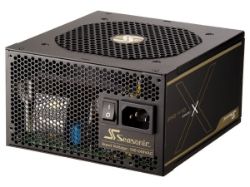
The PSU Problem

More often than not you come upon a computer problem that you can't seem to figure out. A rebooting computer that isn't overheating; a hard drive that seems to be performing below standard without any clear reason.


One of the most common causes of computer problems is a low quality power supply. I took my own experience, and that of others across the net to bring you a general guide to what power supplies to buy.


A Power Supply Units (or PSU for short) is probably one of the most important parts of a computer. Having too low a wattage can cause problems with devices that will not receive enough power. Bad quality PSUs can cause shorts or surges in the system, which can lead to damage on sensitive components such as motherboards. Thus, choosing the right power supply is a must for any computer technician to ensure that a PC runs smoothly and safely. 


General Info on how PSU's work

The Power Supply Unit's purpose is converting AC (Alternating Current) from your house electricity to DC (Direct Current), which is used by the computer. A PSU also converts or 'switches' the DC current to lower voltages for the various components inside the computer (3.3 volts, 5 volts, 12 volts, etc). Newer ATX PSUs (which are the standard now) have a special standby power circuit for the power switch in order to allow the motherboard to detect the power switch being turned on.


Choosing a size

One of the first considerations when buying a PSU is its purpose. Are you planning on putting it into a low-end office computer, or a high-end gaming setup?


Standard computers are those used for light gaming, office usage, browsing, etc. These computers usually lack a graphics card, and run on a pentium 4 or an equivalent CPU. A quality 400 to 550 watt PSU is sufficient to run the computer smoothly.


A more game-related computer with upgrades and a low- to medium-range graphics card falls into the second category. With a dual core or quad core processor this usually requires at least a 550 watt up to a 750 watt PSU depending on the power necessities, especially of the graphics card.


With the serious gamer comes a serious gaming computer, and that requires a PSU with more power. A computer with a quad core or higher CPU, a high-end graphics card (possibly SLI or Crossfire), overclocking and high-end applications or games usually requires a PSU of 750 to 850 watts of very high quality.


There are even stronger PSU's of 950W+, but they are more for high-end graphic setups (such as SLI or Crossfire) or large capacity servers. 


Calculating a size

Power Supply Calculators are useful tools for the end user to work out what PSU is the best for the system intended. Although there are many of them on the internet, there are a few that are recommended by professionals :


Choosing a brand

Although there are many brands on the market, many of them are cheap manufacturers that cut corners mass producing low-quality power supplies that are bad for computers and their users.
Although there are thousands of well-known brands and reccomendations on the internet, there are a few that stand out. In general, brands such as SeaSonic, Thermaltake, Corsair, Coolermaster and XFX are good makes to look at. Here on TSF we generally recommend Seasonic and XFX, but for an extensive list of several brands and their usage, check out the forum article here. Choosing a high quality, brand-name PSU is always a better choice than going for the cheaper makes. You might pay more, but it'll save you money in damages in the future.



Afterword

Often underappreciated and considered, Power Supply Units are probably the most important part of a computer and buying cheap means affecting your own computer's livelyhood and quality. So make the right choice when it comes to your PSU.

Thursday, 24 May 2012

Guide : How to Fix a Corrupt Windows File System

Many Windows systems become corrupt for a variety of reasons, and this leaves you between a rock and hard place in which you want to throw the computer away. But, luckily, there are many ways to work around and fix problems that can occur. This guide can fix a variety of errors and problems with Windows, which can include but is not limited to :
- Error Dialog Boxes
- Startup Failures
- BSoD's, (Blue Screen of Deaths)
- Windows Applications not functioning properly

CheckDisk

CheckDisk comes with Windows as standard, and is the default utility to scan and fix file system and harddrive errors. Although not full proof, it has proven to be a very resourceful and useful tool. This is usually a good place to start when trying to fix corrupt Windows files, as it could be the cause of the corruption, and fixing it is the priority to prevent further problems. 

To run CheckDisk, you need to open a Command Prompt. 
In Windows XP : Click on Start->Run. Then, type in the box, cmd.exe. The Command Prompt will open.
In Windows Vista/7 : Click on Start, and then type cmd in the search box. Then, on the found file, cmd.exe, Right-click, and choose Run as Admin. 

After you have opened the Command Prompt, you can run CheckDisk. Do so, by typing in chkdsk /r. The /r option tells CheckDisk to automatically attempt to repair corrupt sectors on the drive. (You can use /f as well, which also repairs file automatically) Usually, when running the utility directly will result in an error, as shown to the right.
Simply type Y when it prompts to scan at restart, and then restart your computer. A scan will then start before entering Windows after a reboot. 

When the system was checked and errors fixed, then you can move on to the next steps in fixing corrupt files.

System File Checker

The System File Checker is designed to check files installed on your drive, and compare them to what they are supposed to be. Any file that is not the same is then re-copied from the Installation CD (which you will require to use this utility). This fixes many corrupt file problems, and is highly recommended to solve errors and non-functioning or malfunctioning Windows applications.

To run System File Checker, you need to open a Command Prompt again. Same as above.
In Windows XP : Click on Start->Run. Then, type in the box, cmd.exe. The Command Prompt will open.
In Windows Vista/7 : Click on Start, and then type cmd in the search box. Then, on the found file, cmd.exe, Right-click, and choose Run as Admin. 

Insert your Windows Installation Disc. This must be the same version as the one installed, or it might not work. Then, in the Command Prompt box, type 
sfc /scannow. This will initiate and run the utility. This may take a while, so be patient. 


If no errors are found using the System File Checker, or if it doesn't solve the problem, there is another way to fix corrupt files. 

Repair Install

A repair install basically reinstalls Windows, overwriting files on the drive, but only reinstalling Windows core operating system files and drivers. This method keeps documents, applications, profiles and most of the other settings intact. 

For instructions on how to perform a Repair Install on Windows XP, check the guide How to do a Repair Install on Windows XP
I will have a link up for how to perform a Repair Install on Windows Vista or 7 soon. 

If none of these 3 base options work, there is a good chance that your system is corrupted pretty badly, which is usually caused by malware and virusses. If this is the case, the last resort is to format the drive, and reinstall a clean installation of Windows onto it. This is usualy undesirable, as it deletes all user files and documents, but if the system is too unstable to fix normally, it is the most effective way to deal with it.
I will post up a guide on how to do a clean install at a later date, and link it here. 

Any questions or comments can be posted here if you need help with corrupt system files.

Friday, 20 April 2012

Guide : How to do a Repair Install on Windows XP

Windows XP has its faults, and sometimes software, device drivers or any other outside interference can cause corruption in the files systems of Windows, rendering it unusable or unstable. To fix this, there are many methods, but one final fix is to do a repair install.

A Windows Repair Install reinstalls Windows over the installation already present on your computer, but does not delete user data, preferences or other information that is not system based. It simply replaces all system files, and thus fixes many corruption errors. This is a safe way to fix a broken OS without actually having to start all over again user-data-wise.

Now, on to the how to :

Step 1

Check that your Windows XP CD is the same version as the one you have installed. You cannot repair install a XP Home installation using a XP Pro disc. 
Place the disc in your drive, and make sure in the CMOS settings that you boot from the CD-/DVD-ROM first. 
After POST and bootup, you will see a message, "Press any key to boot from CD". Then, as suggested, press any key, and Windows Setup will load.


Step 2

After Setup loads system files necessary for the installation, you will end up on the start screen. From here, choose to set up Windows by pressing Enter. After this, you should press F8 to agree to the Terms and Conditions.
Note : This make take some time depending on the system, and files that setup requires for your computer.


Step 3

Setup will scan your computer for existing Windows installations. Then, it will list any installations found. If you want to install a fresh copy of Windows (deleting the previous installation), you press ESC. But, we want to do a repair install, so we will select the appropriate OS found on the system and type "R".
Note : If there are no installations shown here, or if the option for repair isn't available, it means that the Win XP version in your CD drive isn't the same as the one that is installed. You cannot perform a repair install if this is the case.


Step 4

From this point onwards, the installation will continue like a normal install, except for the setting up of user settings screens later on. They are skipped because the info is already on the previous installation. You will need to retype your CD-Key. After everything has finished, your desktop will load like normal, and the Repair Install has been completed.
Note : Whether this has fixed your problem or not will still have to be tested. If a problem persists, additional troubleshooting will be required.


If there's any questions about the repair install on Windows XP, please do not hesitate to post them in the comments and I'll give you an answer.